Search This Blog
Friday, 15 September 2017
FETCHING DATA FROM A TABLE BASED ON MORE THAN ONE LOOKUP VALUE
Here I want to retrieve values for Data1, Data2, Data3 & Data4 from the given dataset (A1:F10) based on two lookup values that is EmpCode and Dept.
Formula used in range C13:F13
=VLOOKUP(A13&B13,CHOOSE({1,2,3,4,5},A1:A10&B1:B10,C1:C10,D1:D10,E1:E10,F1:F10),{2,3,4,5},0) with CSE
This can also be done using the Index/Match function. Below is the formula:
=INDEX($A$1:$F$10,MATCH(1,IF($A$1:$A$10=$A$13,IF($B$1:$B$10=$B$13,1)),0),{3,4,5,6}) with CSE
Is the post useful?
Kindly put your comment in the comment section and subscribe the blog:)
Friday, 1 September 2017
FORMULA TO ASSIGN RANK (RANK FUNCTION ALTERNATIVE)
We have a in-built RANK function in excel to assign rank to our data but the issue with this function is it skips ranking(s) if there is a tie. In above case, it assigns 3 to 40 and 5 to 38 and skips ranking 4. But the formula that has been used in column C is a perfect substitute for it and returns the correct rankings even if there are duplicate values in our data. It can be used in place of excel RANK function.
Formula used in C2:C11
=SUM(0+(FREQUENCY(IF($A$2:$A$11>A2,$A$2:$A$11),$A$2:$A$11)>0))+1 with CSE
You can use "<" in place of ">" if you want to assign the ranking in ascending order.
Thanks for reading it:)
Kindly put your valuable comment in the comment box and follow my blog.
Thursday, 15 September 2016
FORMULA TO REVERSE DIGITS IN A CELL
I explored a lot on internet for a customized formula which can reverse the digits in a cell and found many solutions using VBA user defined function or by installing add-in but couldn't find any help with excel formula. So here is the formula for it that I developed after 3 hours of struggle:)
=SUMPRODUCT(MID(A1,ROW(INDIRECT("1:"&LEN(A1))),1)*1,POWER(10,ROW(INDIRECT("1:"&LEN(A1)))-1))
Please post in comment section if you have some other short and simple way to do it.
Thanks!
Tuesday, 16 August 2016
MAKE NEXT CONTROL VISIBLE ONCE THE FOCUS LOSES FROM FIRST CONTROL (KEYDOWN EVENT)
Below is the code to make next textbox visible once you finish typing in first textbox and press enter key or tab.
Controls on my form:
4 labels: lblCode, lblName, lblDept and lblDesig
4 textboxes: txtCode, txtName, txtDept and txtDesig
1 CommandButton: cmdSubmit
First I have made all the controls invisible except first textbox and label (lblcode & txtcode in my case) while loading the userform.
Private Sub UserForm_Initialize()
Me.txtCode.SetFocus
Me.txtName.Visible = False
Me.txtDept.Visible = False
Me.txtDesig.Visible = False
Me.lblName.Visible = False
Me.lblDept.Visible = False
Me.lblDesig.Visible = False
Me.cmdSubmit.Visible = False
End Sub
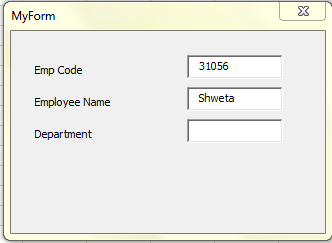
Only the first textbox and label will be visible when userform loads.
Below code on KeyDown Event of txtCode will make next set of controls (lblName & txtName) visible when you press enter key or tab key after typing in first textbox (txtCode) and set the focus on txtName.
Private Sub txtCode_KeyDown(ByVal KeyCode As MSForms.ReturnInteger, ByVal Shift As Integer)
If KeyCode = vbKeyReturn Or KeyCode = vbKeyTab Then
If txtCode.Text <> vbNullString Then
txtName.Visible = True
lblName.Visible = True
txtName.SetFocus
End If
End If
End Sub
Below code on KeyDown Event of txtName will make next set of controls (lblDept & txtDept) visible when you press enter key or tab key after typing in second textbox (txtName) and set the focus on txtDept.
Private Sub txtName_KeyDown(ByVal KeyCode As MSForms.ReturnInteger, ByVal Shift As Integer)
If KeyCode = vbKeyReturn Or KeyCode = vbKeyTab Then
If txtName <> vbNullString Then
txtDept.Visible = True
lblDept.Visible = True
txtDept.SetFocus
End If
End If
End Sub
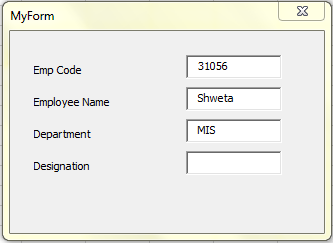
Below code on KeyDown Event of txtDept will make next set of controls (lblDesig & txtDesig) visible when you press enter key or tab key after typing in third textbox (txtDept) and set the focus on txtDesig.
Private Sub txtDept_KeyDown(ByVal KeyCode As MSForms.ReturnInteger, ByVal Shift As Integer)
If KeyCode = vbKeyReturn Or KeyCode = vbKeyTab Then
If txtDept <> vbNullString Then
txtDesig.Visible = True
lblDesig.Visible = True
txtDesig.SetFocus
End If
End If
End Sub
Below code on KeyDown Event of txtDesig will make next control (cmdSubmit) visible when you press enter key or tab key after typing in last textbox (txtDesig) and set the focus on cmdSubmit.
Private Sub txtDesig_KeyDown(ByVal KeyCode As MSForms.ReturnInteger, ByVal Shift As Integer)
If KeyCode = vbKeyReturn Or KeyCode = vbKeyTab Then
If txtDesig <> vbNullString Then
cmdSubmit.Visible = True
cmdSubmit.SetFocus
End If
End If
End Sub
vbKeyReturn - Enter key on your keyboard
vbKeyTab - Tab key on your keyboard
For more Key Code Constants you can refer to Microsoft site using this link.
Thanks.
Monday, 15 August 2016
CALCULATE TOTAL NUMBER OF A WEEKDAY IN A MONTH
Cell D2 : Data validation for Month Name
Cell E2: Data validation for Weekday Name
Formula in F2:
=SUMPRODUCT(--(WEEKDAY(ROW(INDIRECT(DATE(YEAR(D2),MONTH(D2),1)&":"&EOMONTH(D2,0))))=MATCH(E2,{"Sunday","Monday","Tuesday","Wednesday","Thursday","Friday","Saturday"},0)))
Note: Make sure the month name list (A2:A13 in my case) that you are using for data validation, is in date format, not in text format.
Is the post helpful?
Please post your valuable comment. Thanks!
Sunday, 17 August 2014
CALCULATE SHIFT HOURS FROM SHIFT WINDOW (START TIME AND END TIME)
Say, you are given shift timings ( shift start time and shift end time) and you need to calculate shift hours from them. Below is the formula for that.
Formula in B2:
=MOD(RIGHT(A2,5)-LEFT(A2,5),1)*24 and drag it down.
Friday, 14 September 2012
RESTRICT USER TO MOVE YOUR USERFORM
Use below codes to restrict the users to move your userform.
1) Declare variables
Private m_sngAnchorLeft As Single
Private m_sngAnchorTop As Single
Private m_blnSetAnchor As Boolean
2) Paste the below code in the Activate event of the userform
Private Sub UserForm_Activate()
If Me.Visible Then
If Not m_blnSetAnchor Then
m_sngAnchorLeft = Me.Left
m_sngAnchorTop = Me.Top
m_blnSetAnchor = True
End If
End If
End Sub
3) Paste the below code in the Deactivate event of the userform
Private Sub UserForm_Deactivate()
m_blnSetAnchor = False
End Sub
4) Paste the below code in the Layout event of the userform
Private Sub UserForm_Layout()
If m_blnSetAnchor Then
Me.Left = m_sngAnchorLeft
Me.Top = m_sngAnchorTop
End If
End Sub
1) Declare variables
Private m_sngAnchorLeft As Single
Private m_sngAnchorTop As Single
Private m_blnSetAnchor As Boolean
2) Paste the below code in the Activate event of the userform
Private Sub UserForm_Activate()
If Me.Visible Then
If Not m_blnSetAnchor Then
m_sngAnchorLeft = Me.Left
m_sngAnchorTop = Me.Top
m_blnSetAnchor = True
End If
End If
End Sub
3) Paste the below code in the Deactivate event of the userform
Private Sub UserForm_Deactivate()
m_blnSetAnchor = False
End Sub
4) Paste the below code in the Layout event of the userform
Private Sub UserForm_Layout()
If m_blnSetAnchor Then
Me.Left = m_sngAnchorLeft
Me.Top = m_sngAnchorTop
End If
End Sub
Note: All the above codes should be used
Subscribe to:
Posts (Atom)