Search This Blog

Friday, 21 September 2018

IN-CELL PROGRESS METER IN EXCEL


IN-CELL PROGRESS METER IN EXCEL

Column A - Employee Name
Column B - Target
Column C - Achieved Score
Column D - Achieved % ( Derived Field )

Step 1: Write formula

Put the below formula in cell D2 and drag it down:
=REPT("█",C2)& " " &TEXT((C2/B2),"0.0%")

Step 2: Change column width and alignment

Adjust the width of Column D to make the cells completely filled for 100% score so that your bar does not come out of the cell with the increase in Achieve % and appears as a progress meter. Also, make the contents left aligned.

Step3: Apply conditional formatting

Apply the below conditional formatting rules on Column D. Change the threshold as per your requirement.

CF1:  =($C2/$B2)>0.7
CF2:  =AND(($C2/$B2)>=0.3,($C2/$B2)<=0.7)
CF3:  =($C2/$B2)<0.3

Note - This approach is good if it is applied on small targets like upto 20 or 25. Because if you use it for big targets, you will have to adjust (increase) the column width accordingly which will not come out as an attractive visualization.

Is the post useful?

Kindly put your suggestion in the comment box. Thank you.

Sunday, 17 December 2017

COUNT DISTINCT VALUES USING PIVOT TABLE


I have a column "Product Category" in my dataset having 23 entries including duplicates.


I want to know the distinct number of categories. There are different ways of doing it. In this post, I am going to do it using pivot table.

Step-1: Select your data > Go to Insert Tab > Click on PivotTable or You can use keyboard shortcut Alt + NV. A dialogue box will appear to create pivot table.

Step-2: After selecting the range and worksheet where you want to place the pivot table, check "Add this data to the Data Model" (as shown below) and click OK.


This process takes a few seconds as it loads the data into data model.

Step-3: Drag your field onto the Values area in the Pivot Table list. It will display the count of Product Category in the table (overall count including duplicates).


Now, we will perform two more steps to get the distinct count.

Step-4: Go to Value Field Settings by right clicking on the field in the pivot table.


Step-5: In the appeared dialogue box, select Distinct Count as type of calculation and click OK. You will get the distinct count of product categories.


Note: "Distinct Count" will not appear as type of calculation if you don't check "Add this data to the Data Model" while creating the pivot table.

By formula : Count unique entries from a list of duplicates

Is this post helpful?

Put your valuable comments in the comment box:)

Sunday, 10 December 2017

WORKING WITH DATES IN VBA


This post is dedicated on handling the dates in VBA by using some in-built functions. I have explained some functions in short, used to work with dates.

Assigning a datevalue to a variable.

MyDate = "10-12-2017"                       'Directly passing the date
MyDate = DateSerial(2017, 12, 10)      'DateSerial function to assign a date
MyDate = Date                                      'Passing today's date using "date" function

Adding an interval to a date like years, months, quarters etc. We have an in-built function DATEADD for it which takes three arguments Interval, Number, Date.

Example:
DateAdd("yyyy", 1, "10-12-2017")     'Adding one year to a date; new date is 10-12-2018
DateAdd("m", 2, "10-12-2017")          'Adding 2 months to a date; new date is 10-02-2018
DateAdd("d", 3, "10-12-2017")           'Adding 3 days to a date; new date is 13-12-2017
DateAdd("ww", 1, "10-12-2017")       'Adding a week to a date; new date is 17-12-2017
DateAdd("q", 1, "10-12-2017")           'Adding a quarter to a date; new date is 10-03-2018

Similarly, we have other intervals to add hours, minutes and seconds to a date. Strings used to specifiy the others intervals:
"h" - hours, "n" - minutes, "s" - seconds

Fetching or extracting a part of the date. We have DATEPART function in VBA to do the job. It takes four arguments Interval, Date, FirstDayofWeek, FirstWeekofYear. Last two arguments are optional.

FirstDayofWeek - Specifies the weekday that should be used as the first day of the week. Default is vbSunday.
FirstWeekofYear - Specifies the week that should be used as the first week of the year. Default is vbFirstJan1.

Example:
DatePart("d", "10-12-2017")          'Returns day of month (1-31) i.e. 10
DatePart("m", "10-12-2017")         'Returns month i.e. 12
DatePart("yyyy", "10-12-2017")    'Returns year i.e. 2017
DatePart("q", "10-12-2017")          'Returns quarter i.e. 4
DatePart("ww", "10-12-2017")      'Returns week of year (1-53) i.e. 50
DatePart("w", "10-12-2017")         'Returns day of week (1-7) i.e. 1

Likewise DATEADD function, we have other intervals in DATEPART function also. Strings used to specify other intevals:
"h" - hours, "n" - minutes, "s" - seconds, "y" - day of year (1-366)

We also have MONTH and MONTHNAME function to return the month number and name of the month respectively. MONTH function takes a date only as an argument. MONTHNAME function takes two arguments Month, Abbreviation. Second argument is optional which takes boolean value TRUE or FALSE. TRUE to abbreviate the month name like Jan, Feb, Mar etc.

Example:
Month("10-12-2017")                                            'Returns 12
MonthName(Month("10-12-2017"), False)           'Returns "December "
MonthName(Month("10-12-2017"), True)            'Returns "Dec"

Likewise MONTH and MONTHNAME function, we have WEEKDAY and WEEKDAYNAME function to return the day of the week and name of the weekday respectively. WEEKDAY takes two arguments Date and FirstDayofWeek. Second argument is optional which specifies the weekday that should be used as first day of the week. Default is vbSunday if nothing specifies.

WEEKDAYNAME takes three arguments Weekday, Abbreviation and FirstDayofWeek. Last two arguments are optional. Abbreviation takes boolean value TRUE or FALSE. TRUE to abbreviate weekday name like Sun, Mon etc. FirstDayofWeek specifies the weekday that should be used as first day of the week. Default is vbSunday if nothing specifies.

Example:
Weekday("10-12-2017", vbMonday)    'Returns the day of the week i.e. 7
WeekdayName(Weekday("10-12-2017", vbSunday), False, vbSunday)    'Returns "Sunday"
WeekdayName(Weekday("10-12-2017", vbMonday), True, vbSunday)    'Returns "Sat"

Formatting dates. VBA has an in-built function FORMATDATETIME to assign a format to the given date. This function takes two arguments Expression, NameFormat. Second argument is optional.

Example:
FormatDateTime("10-12-2017")                                         'Returns 10-12-2017
FormatDateTime("10-12-2017", vbLongDate)                   'Returns 10 December 2017
FormatDateTime("10-12-2017", vbShortDate)                   'Returns 10-12-2017
FormatDateTime("10-12-2017 09:30:00", vbLongTime)   'Returns 09:30:00
FormatDateTime("10-12-2017 09:30:00", vbShortTime)   'Returns 09:30

Finally, wrapping up this post with ISDATE function used to check whether the passed value is a valid date or not. It takes only one arguement i.e. Expression. It returns TRUE if the passed value is a proper date, time or or a text representation of date or time and FALSE for all non-date strings and numbers.

IsDate("10-12-2017")               'Returns TRUE
IsDate(43079)                           'Returns FALSE
IsDate("Excel VBA Tips")       'Returns FALSE
IsDate(#9:30:00 AM#)             'Returns TRUE

Is this post helpful?

Kindly post your valuable comments or suggestions.

Thanks!

Thursday, 26 October 2017

ENABLE OR DISABLE CHECKBOX ON CLICK OF ANOTHER CHECKBOX


1) Write the below code on the initialize event of  your userform

Private Sub UserForm_Initialize()
Me.ChildBox1.Enabled = False
Me.ChildBox2.Enabled = False
End Sub

It makes the Child-1 & Child-2 disabled which means only the Parent checkbox will be enabled when the userform initializes.

2) Write the below code on Click event of the Parent checkbox.

Private Sub parentbox_Click()
If Me.parentbox.Value = True Then
Me.ChildBox1.Enabled = True
Me.ChildBox2.Enabled = True
ElseIf Me.parentbox.Value = False Then
Me.ChildBox1.Enabled = False
Me.ChildBox2.Enabled = False
End If
End Sub

It makes the Child-1 and Child-2 enabled when Parent is checked and disabled when Parent is unchecked.

Is the post useful? 

Please put your comments in the comment section and subscribe the blog:) Thank you.


Friday, 15 September 2017

FETCHING DATA FROM A TABLE BASED ON MORE THAN ONE LOOKUP VALUE


Here I want to retrieve values for  Data1, Data2, Data3 & Data4 from the given dataset (A1:F10) based on two lookup values that is EmpCode and Dept.

Formula used in range C13:F13

=VLOOKUP(A13&B13,CHOOSE({1,2,3,4,5},A1:A10&B1:B10,C1:C10,D1:D10,E1:E10,F1:F10),{2,3,4,5},0) with CSE

This can also be done using the Index/Match function. Below is the formula:

=INDEX($A$1:$F$10,MATCH(1,IF($A$1:$A$10=$A$13,IF($B$1:$B$10=$B$13,1)),0),{3,4,5,6}) with CSE

Is the post useful?

Kindly put your comment in the comment section and subscribe the blog:)


Friday, 1 September 2017

FORMULA TO ASSIGN RANK (RANK FUNCTION ALTERNATIVE)


We have a in-built RANK function in excel to assign rank to our data but the issue with this function is it skips ranking(s) if there is a tie. In above case, it assigns 3 to 40 and 5 to 38 and skips ranking 4. But the formula that has been used in column C is a perfect substitute for it and returns the correct rankings even if there are duplicate values in our data. It can be used in place of excel RANK function.

Formula used in C2:C11

=SUM(0+(FREQUENCY(IF($A$2:$A$11>A2,$A$2:$A$11),$A$2:$A$11)>0))+1 with CSE

You can use "<" in place of  ">" if you want to assign the ranking in ascending order.

Thanks for reading it:)

Kindly put your valuable comment in the comment box and follow my blog.


Thursday, 15 September 2016

FORMULA TO REVERSE DIGITS IN A CELL


I explored a lot on internet for a customized formula which can reverse the digits in a cell and found many solutions using VBA user defined function or by installing add-in but couldn't find any help with excel formula. So here is the formula for it that I developed after 3 hours of struggle:)

=SUMPRODUCT(MID(A1,ROW(INDIRECT("1:"&LEN(A1))),1)*1,POWER(10,ROW(INDIRECT("1:"&LEN(A1)))-1)) 

Please post in comment section if you have some other short and simple way to do it.

Thanks!

Tuesday, 16 August 2016

MAKE NEXT CONTROL VISIBLE ONCE THE FOCUS LOSES FROM FIRST CONTROL (KEYDOWN EVENT)


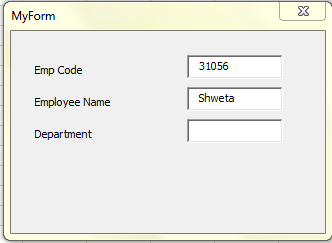
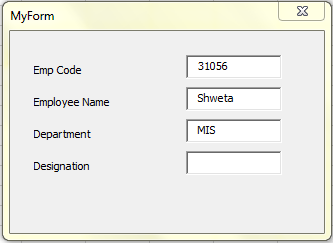
Below is the code to make next textbox visible once you finish typing in first textbox and press enter key or tab.

Controls on my form:

4 labels:                     lblCode, lblName, lblDept and lblDesig
4 textboxes:               txtCode, txtName, txtDept and txtDesig
1 CommandButton:   cmdSubmit

First I have made all the controls invisible except first textbox and label (lblcode & txtcode in my case) while loading the userform.

Private Sub UserForm_Initialize()
Me.txtCode.SetFocus
Me.txtName.Visible = False
Me.txtDept.Visible = False
Me.txtDesig.Visible = False
Me.lblName.Visible = False
Me.lblDept.Visible = False
Me.lblDesig.Visible = False
Me.cmdSubmit.Visible = False
End Sub

Only the first textbox and label will be visible when userform loads.


Below code on KeyDown Event of txtCode will make next set of controls (lblName & txtName) visible when you press enter key or tab key after typing in first textbox (txtCode) and set the focus on txtName.

Private Sub txtCode_KeyDown(ByVal KeyCode As MSForms.ReturnInteger, ByVal Shift As Integer)
If KeyCode = vbKeyReturn Or KeyCode = vbKeyTab Then
        If txtCode.Text <> vbNullString Then
            txtName.Visible = True
            lblName.Visible = True
            txtName.SetFocus
        End If
End If
End Sub

Below code on KeyDown Event of txtName will make next set of controls (lblDept & txtDept) visible when you press enter key or tab key after typing in second textbox (txtName) and set the focus on txtDept.

Private Sub txtName_KeyDown(ByVal KeyCode As MSForms.ReturnInteger, ByVal Shift As Integer)
If KeyCode = vbKeyReturn Or KeyCode = vbKeyTab Then
    If txtName <> vbNullString Then
        txtDept.Visible = True
        lblDept.Visible = True
        txtDept.SetFocus
    End If
End If
End Sub

Below code on KeyDown Event of txtDept will make next set of controls (lblDesig & txtDesig) visible when you press enter key or tab key after typing in third textbox (txtDept) and set the focus on txtDesig.

Private Sub txtDept_KeyDown(ByVal KeyCode As MSForms.ReturnInteger, ByVal Shift As Integer)
If KeyCode = vbKeyReturn Or KeyCode = vbKeyTab Then
    If txtDept <> vbNullString Then
        txtDesig.Visible = True
        lblDesig.Visible = True
        txtDesig.SetFocus
    End If
End If
End Sub

Below code on KeyDown Event of txtDesig will make next control (cmdSubmit) visible when you press enter key or tab key after typing in last textbox (txtDesig) and set the focus on cmdSubmit.

Private Sub txtDesig_KeyDown(ByVal KeyCode As MSForms.ReturnInteger, ByVal Shift As Integer)
If KeyCode = vbKeyReturn Or KeyCode = vbKeyTab Then
    If txtDesig <> vbNullString Then
        cmdSubmit.Visible = True
        cmdSubmit.SetFocus
    End If
End If
End Sub

vbKeyReturn - Enter key on your keyboard
vbKeyTab - Tab key on your keyboard

For more Key Code Constants you can refer to Microsoft site using this link.

Thanks.

Monday, 15 August 2016

CALCULATE TOTAL NUMBER OF A WEEKDAY IN A MONTH


Cell D2 : Data validation for Month Name
Cell E2: Data validation for Weekday Name

Formula in F2:
=SUMPRODUCT(--(WEEKDAY(ROW(INDIRECT(DATE(YEAR(D2),MONTH(D2),1)&":"&EOMONTH(D2,0))))=MATCH(E2,{"Sunday","Monday","Tuesday","Wednesday","Thursday","Friday","Saturday"},0)))

Note: Make sure the month name list (A2:A13 in my case) that you are using for data validation, is in date format, not in text format.

Is the post helpful?

Please post your valuable comment. Thanks!

Sunday, 17 August 2014

CALCULATE SHIFT HOURS FROM SHIFT WINDOW (START TIME AND END TIME)


Say, you are given shift timings ( shift start time and shift end time) and you need to calculate shift hours from them. Below is the formula for that.

Formula in B2:
=MOD(RIGHT(A2,5)-LEFT(A2,5),1)*24 and drag it down.

Friday, 14 September 2012

RESTRICT USER TO MOVE YOUR USERFORM

Use below codes to restrict the users to move your userform.

1) Declare variables

Private m_sngAnchorLeft As Single
Private m_sngAnchorTop As Single
Private m_blnSetAnchor As Boolean


2) Paste the below code in the Activate event of the userform

Private Sub UserForm_Activate()
If Me.Visible Then
        If Not m_blnSetAnchor Then
            m_sngAnchorLeft = Me.Left
            m_sngAnchorTop = Me.Top
            m_blnSetAnchor = True
        End If
    End If
End Sub

3) Paste the below code in the Deactivate event of the userform

Private Sub UserForm_Deactivate()
m_blnSetAnchor = False
End Sub

4) Paste the below code in the Layout event of the userform

Private Sub UserForm_Layout()
If m_blnSetAnchor Then
        Me.Left = m_sngAnchorLeft
        Me.Top = m_sngAnchorTop
    End If
End Sub

Note: All the above codes should be used


DISABLE CLOSE("X") BUTTON OF USERFORM


To disable the close(X) button of userform paste the below code on the QueryClose event of your userform.


Private Sub UserForm_QueryClose(Cancel As Integer, CloseMode As Integer)
If CloseMode = 0 Then
Cancel = True
MsgBox "The X is disabled, please use a button on the form.", vbCritical
End If
End Sub

Sunday, 19 August 2012

CREATE FUNNEL CHART USING FORMULA


Following are the Steps:

1. Sort your data in Descending Order
2. Enter formula in C2  =REPT("|",B2/50) and drag it down
3.Choose the color that you want.

CHANGE TIME FORMAT FROM "HH:MM Hrs" TO "HH:MM:SS"


Formula in B2:
=TEXT(LEFT(A2,2)/24+MID(A2,4,2)/1440,"hh:mm:ss") and drag it down.


Friday, 17 August 2012

FIND AVERAGE OF VALUES EXCLUDING MAX AND MIN VALUE


Formula in A13:
=(SUM(A1:A12)-MIN(A1:A12)-MAX(A1:A12))/(COUNT(A1:A12)-2)

FIND OUT MAXIMUM OCCURED TEXT IN A RANGE


Array formula in B2:
=INDEX($A$2:$A$9,MATCH(MAX(COUNTIF($A$2:$A$9,$A$2:$A$9)),COUNTIF($A$2:$A$9,$A$2:$A$9),0)) with CSE

Monday, 13 August 2012

TO FIT THE SIZE OF USERFORM TO YOUR EXCEL WINDOW

Paste the below code in UserForm_Activate procedure and run. It will fit the size of userform to your excel window.


Private Sub UserForm_Activate()
ActiveWindow.WindowState = xlMinimized
With Application
    Me.Top = .Top
    Me.Left = .Left
    Me.Height = .Height
    Me.Width = .Width
End With
End Sub

DATA VALIDATION FOR RESTRICTING DUPLICATE VALUES


Select cell A7 and go to Data Tab, Click on Data Validation, select Custom in Allow field and enter formula in formula field as shown below (Click to enlarge)


Formula:  =ISNA(VLOOKUP(A7,A2:A6,1,FALSE))


Saturday, 11 August 2012

ADD ITEMS TO ALL COMBOBOXES OF A USERFORM AT ONE TIME

This is required when you have a number of comboboxes on a userform and you need to add the same list of items to all comboboxes. Instead of adding items one by one to each combobox, you can just use the below code.

Paste this code on userform_intialize event and run.


Private Sub UserForm_Initialize()
Dim nme As Range
  Dim cntrl As Control
  Dim CB As ComboBox
  For Each cntrl In Me.Controls
    If TypeName(cntrl) = "ComboBox" Then
      If CB Is Nothing Then
        For Each nme In Sheet1.Range("MyName")
          cntrl.AddItem nme.Value
          Set CB = cntrl
        Next
      Else
        cntrl.List = CB.List
      End If
    End If
  Next
End Sub

Change highlighted part as per your requirement

ALL SHAPE STYLES

Name Value
msoShape16pointStar 94
msoShape24pointStar 95
msoShape32pointStar 96
msoShape4pointStar 91
msoShape5pointStar 92
msoShape8pointStar 93
msoShapeActionButtonBackorPrevious 129
msoShapeActionButtonBeginning 131
msoShapeActionButtonCustom 125
msoShapeActionButtonDocument 134
msoShapeActionButtonEnd 132
msoShapeActionButtonForwardorNext 130
msoShapeActionButtonHelp 127
msoShapeActionButtonHome 126
msoShapeActionButtonInformation 128
msoShapeActionButtonMovie 136
msoShapeActionButtonReturn 133
msoShapeActionButtonSound 135
msoShapeArc 25
msoShapeBalloon 137
msoShapeBentArrow 41
msoShapeBentUpArrow 44
msoShapeBevel 15
msoShapeBlockArc 20
msoShapeCan 13
msoShapeChevron 52
msoShapeCircularArrow 60
msoShapeCloudCallout 108
msoShapeCross 11
msoShapeCube 14
msoShapeCurvedDownArrow 48
msoShapeCurvedDownRibbon 100
msoShapeCurvedLeftArrow 46
msoShapeCurvedRightArrow 45
msoShapeCurvedUpArrow 47
msoShapeCurvedUpRibbon 99
msoShapeDiamond 4
msoShapeDonut 18
msoShapeDoubleBrace 27
msoShapeDoubleBracket 26
msoShapeDoubleWave 104
msoShapeDownArrow 36
msoShapeDownArrowCallout 56
msoShapeDownRibbon 98
msoShapeExplosion1 89
msoShapeExplosion2 90
msoShapeFlowchartAlternateProcess 62
msoShapeFlowchartCard 75
msoShapeFlowchartCollate 79
msoShapeFlowchartConnector 73
msoShapeFlowchartData 64
msoShapeFlowchartDecision 63
msoShapeFlowchartDelay 84
msoShapeFlowchartDirectAccessStorage 87
msoShapeFlowchartDisplay 88
msoShapeFlowchartDocument 67
msoShapeFlowchartExtract 81
msoShapeFlowchartInternalStorage 66
msoShapeFlowchartMagneticDisk 86
msoShapeFlowchartManualInput 71
msoShapeFlowchartManualOperation 72
msoShapeFlowchartMerge 82
msoShapeFlowchartMultidocument 68
msoShapeFlowchartOffpageConnector 74
msoShapeFlowchartOr 78
msoShapeFlowchartPredefinedProcess 65
msoShapeFlowchartPreparation 70
msoShapeFlowchartProcess 61
msoShapeFlowchartPunchedTape 76
msoShapeFlowchartSequentialAccessStorage 85
msoShapeFlowchartSort 80
msoShapeFlowchartStoredData 83
msoShapeFlowchartSummingJunction 77
msoShapeFlowchartTerminator 69
msoShapeFoldedCorner 16
msoShapeHeart 21
msoShapeHexagon 10
msoShapeHorizontalScroll 102
msoShapeIsoscelesTriangle 7
msoShapeLeftArrow 34
msoShapeLeftArrowCallout 54
msoShapeLeftBrace 31
msoShapeLeftBracket 29
msoShapeLeftRightArrow 37
msoShapeLeftRightArrowCallout 57
msoShapeLeftRightUpArrow 40
msoShapeLeftUpArrow 43
msoShapeLightningBolt 22
msoShapeLineCallout1 109
msoShapeLineCallout1AccentBar 113
msoShapeLineCallout1BorderandAccentBar 121
msoShapeLineCallout1NoBorder 117
msoShapeLineCallout2 110
msoShapeLineCallout2AccentBar 114
msoShapeLineCallout2BorderandAccentBar 122
msoShapeLineCallout2NoBorder 118
msoShapeLineCallout3 111
msoShapeLineCallout3AccentBar 115
msoShapeLineCallout3BorderandAccentBar 123
msoShapeLineCallout3NoBorder 119
msoShapeLineCallout4 112
msoShapeLineCallout4AccentBar 116
msoShapeLineCallout4BorderandAccentBar 124
msoShapeLineCallout4NoBorder 120
msoShapeMixed -2
msoShapeMoon 24
msoShapeNoSymbol 19
msoShapeNotchedRightArrow 50
msoShapeNotPrimitive 138
msoShapeOctagon 6
msoShapeOval 9
msoShapeOvalCallout 107
msoShapeParallelogram 2
msoShapePentagon 51
msoShapePlaque 28
msoShapeQuadArrow 39
msoShapeQuadArrowCallout 59
msoShapeRectangle 1
msoShapeRectangularCallout 105
msoShapeRegularPentagon 12
msoShapeRightArrow 33
msoShapeRightArrowCallout 53
msoShapeRightBrace 32
msoShapeRightBracket 30
msoShapeRightTriangle 8
msoShapeRoundedRectangle 5
msoShapeRoundedRectangularCallout 106
msoShapeSmileyFace 17
msoShapeStripedRightArrow 49
msoShapeSun 23
msoShapeTrapezoid 3
msoShapeUpArrow 35
msoShapeUpArrowCallout 55
msoShapeUpDownArrow 38
msoShapeUpDownArrowCallout 58
msoShapeUpRibbon 97
msoShapeUTurnArrow 42
msoShapeVerticalScroll 101
msoShapeWave 103